6 min readBy Iftekhar Priyo
Making Your EC2 App Production Ready with Nginx
Your application is finally online—but why do you still need to type :3000? In this guide, we'll learn what Nginx is, what a reverse proxy does, and how to connect a real domain to your EC2 server.
- AWS
- Cloud
- DNS
- EC2
- NGINX
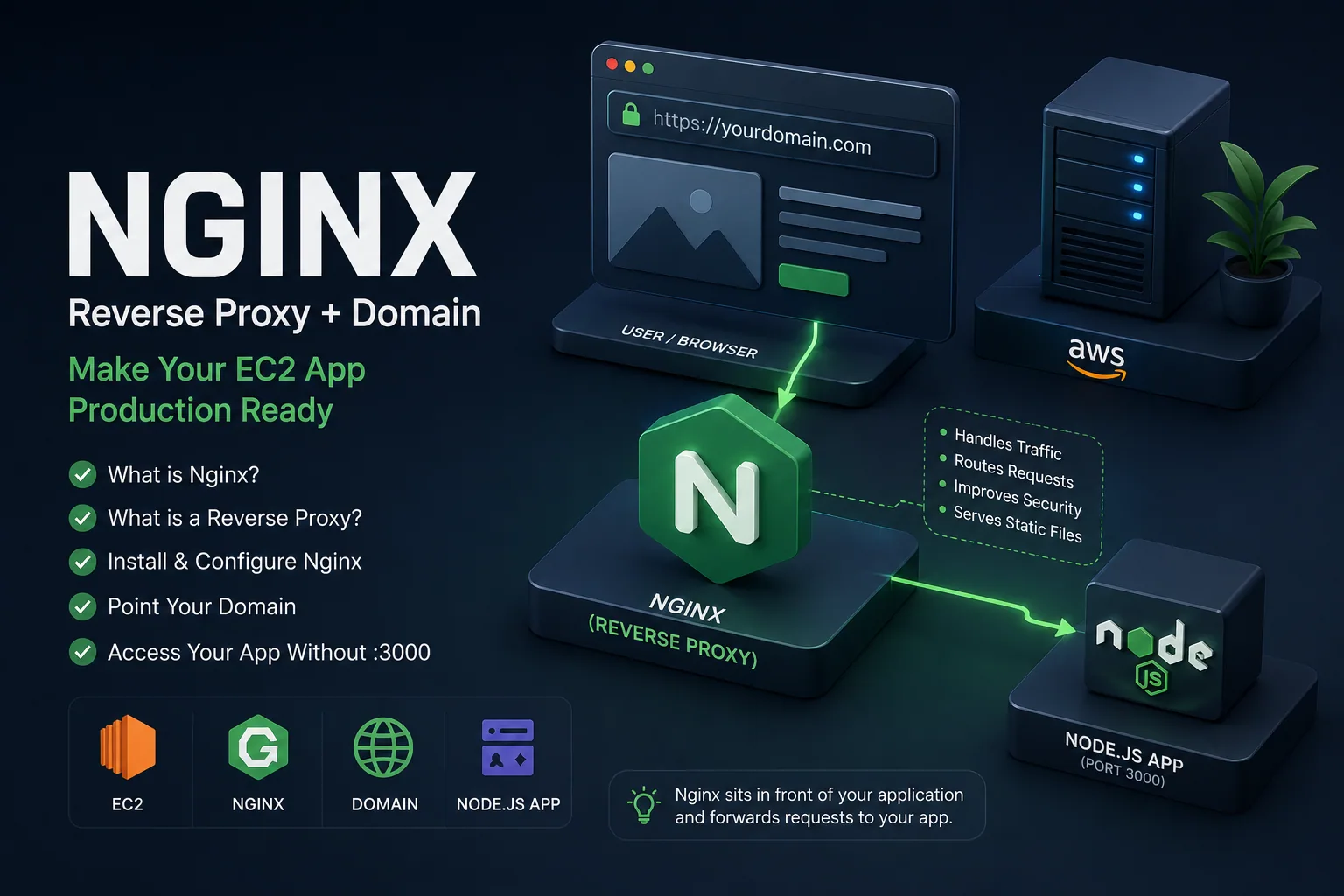
In the previous article, we successfully deployed our application to an EC2 server.
If you followed along, you probably visited it using something like this:
http://54.xxx.xxx.xxx:3000And that's great—it means your application is running!
But let's be honest. Nobody wants to remember an IP address and a port number.
By the end of this article, you'll understand why almost every production application uses Nginx, what a reverse proxy actually does, and how to connect your own domain to your server.
🤔 "My app already works. Why do I need Nginx?"
This is probably the first question every beginner asks.
"If my Node.js app already works on port 3000, why should I install another piece of software?"
That's a completely fair question.
Your Node.js application is responsible for running your code, handling API requests, and talking to your database.
Nginx has a different responsibility.
It sits in front of your application and handles incoming traffic, domains, HTTPS, routing, and many other web server tasks.
Instead of asking one program to do everything, each tool focuses on what it does best.
That's why you'll see Nginx in front of countless production applications.
What is Nginx?
Think of a restaurant.
Customers don't walk directly into the kitchen.
Instead, a waiter greets them, takes their order, and delivers it to the chefs.
Nginx works in a very similar way.
Visitors send requests to Nginx first.
Nginx then forwards those requests to your Node.js application.
Your application stays focused on serving your users, while Nginx handles everything happening at the front door.
What is a Reverse Proxy?
A reverse proxy simply sits between your users and your application.
Before:
Browser
    │
    ▼
Node.js (Port 3000)
After:
Browser
    │
    ▼
Nginx (80 / 443)
    │
    ▼
Node.js (Port 3000)
We didn't change our application at all.
We simply placed Nginx in front of it.
From now on, users communicate with Nginx, and Nginx quietly forwards every request to our application.
💡 Before we continue
From this point onward, every command in this article should be executed inside your EC2 instance. You can connect to it using SSH from your own terminal or by using EC2 Instance Connect from the AWS Console.
Install Nginx
Installing Nginx on Ubuntu is straightforward.
sudo apt update
sudo apt install nginx -y
Check whether it's running:
sudo systemctl status nginxNow open your EC2 public IP in a browser.
If you see the default Nginx welcome page, everything is working correctly.
Configure Nginx as a Reverse Proxy
Create a new Nginx configuration.
sudo nano /etc/nginx/sites-available/my-appPaste the following configuration.
server {
    listen 80;

    server_name YOUR_DOMAIN_OR_IP;

    location / {
        proxy_pass http://localhost:3000;

        proxy_set_header Host $host;
        proxy_set_header X-Real-IP $remote_addr;
        proxy_set_header X-Forwarded-For $proxy_add_x_forwarded_for;
        proxy_set_header X-Forwarded-Proto $scheme;
    }
}
The most important line is:
proxy_pass http://localhost:3000;It simply tells Nginx:
"Whenever someone visits this website, forward the request to my application running on port 3000."
That's the entire idea behind a reverse proxy.
Enable the Configuration
Enable the site.
sudo ln -s /etc/nginx/sites-available/my-app /etc/nginx/sites-enabled/Remove the default site.
sudo rm /etc/nginx/sites-enabled/defaultTest your configuration.
sudo nginx -tIf everything looks good, reload Nginx.
sudo systemctl reload nginxNow visit:
http://YOUR_PUBLIC_IPNotice something?
There's no longer any need to type :3000.
Nginx receives the request on port 80 and automatically forwards it to your application.
Connecting Your Own Domain
Using an IP address works, but a domain looks much more professional.
You can purchase one from providers like:
- Namecheap
- Name.com
- Cloudflare Registrar
Once you have your domain, open its DNS settings.
Create an A Record.
| Type | Host | Value |
|---|---|---|
| A | @ | Your EC2 Public IP |
For a subdomain such as blog.yourdomain.com:
| Type | Host | Value |
|---|---|---|
| A | blog | Your EC2 Public IP |
Save the record.
DNS changes usually take a few minutes, although sometimes they can take a little longer.
How Does the Domain Know Where My Server Is?
When someone types your domain into their browser, the first thing the browser does is ask the DNS system:
"Where is this website?"
DNS replies with your EC2 server's IP address.
Only then does the browser connect to your server.
You can think of DNS as the internet's contact list.
Instead of remembering numbers, we simply remember names.
Update the Nginx Configuration
Earlier in this article, we configured Nginx using:
server_name YOUR_DOMAIN_OR_IP;At that point, we hadn't connected a real domain yet, so we used a placeholder.
Now that your domain points to your EC2 instance, it's time to replace it with your actual domain name.
For example:
server {
    listen 80;

    server_name yourdomain.com www.yourdomain.com;

    location / {
        proxy_pass http://localhost:3000;

        proxy_set_header Host $host;
        proxy_set_header X-Real-IP $remote_addr;
        proxy_set_header X-Forwarded-For $proxy_add_x_forwarded_for;
        proxy_set_header X-Forwarded-Proto $scheme;
    }
}
If you're using a subdomain instead, such as:
blog.yourdomain.comthen simply write:
server_name blog.yourdomain.com;Save the file, then test the configuration.
sudo nginx -tIf there are no errors, reload Nginx.
sudo systemctl reload nginxYour domain and Nginx are now connected.
When someone visits your domain, Nginx recognizes the request through the server_name value and forwards it to your application.
💭 What's happening behind the scenes?
Your DNS record tells visitors which server to connect to, while the
server_namedirective tells Nginx which website on that server should handle the request. Both pieces are needed for your domain to work correctly.
Common Beginner Mistakes
My domain doesn't open.
Check these first:
- Is the A Record pointing to the correct EC2 IP?
- Has DNS finished propagating?
- Is Nginx running?
- Is port 80 open in your Security Group?
Do I still need PM2?
Yes.
PM2 and Nginx have different jobs.
PM2 keeps your Node.js application running.
Nginx forwards requests to it.
You'll almost always see them working together.
Wrapping Up
Our deployment has become much cleaner.
Browser
     │
     ▼
yourdomain.com
     │
     ▼
Nginx
     │
     ▼
Node.js Application
Your application still runs on port 3000, but your users never need to know that.
In the next article, we'll make everything secure by adding a free SSL certificate with Let's Encrypt, so visitors can access the website using HTTPS instead of HTTP.
Share this article
Send it to someone who might find it useful.